Showing posts with label Swing. Show all posts

Tuesday, June 24, 2008

Metawidget and Tooltips

Update: the APIs shown in this blog entry have changed slightly in newer releases of Metawidget. Specifically you should now use a WidgetProcessor to call .setToolTipText. Please download the latest documentation from http://metawidget.org

I was recently asked whether Metawidget could 'add an annotation for field/methods to describe a field in the UI with a tooltip'. Here's how to add that:

Step 1: Write the Annotation

You can basically copy @UiLabel:

package com.myapp;

import java.lang.annotation.*;

@Retention( RetentionPolicy.RUNTIME )
@Target( { ElementType.FIELD, ElementType.METHOD } )
public @interface UiDescription {
   String value();
}

Step 2: Write an Inspector for the Annotation

Most of the work is done for you by BasePropertyInspector:

package com.myapp;

import java.util.*;
import org.metawidget.inspector.impl.*;
import org.metawidget.util.*;

public class DescriptionInspector extends BasePropertyInspector {
   public DescriptionInspector() {
      this( new BasePropertyInspectorConfig() );
   }

   public DescriptionInspector( BasePropertyInspectorConfig config ) {
      super( config );
   }

   @Override
   protected Map<String, String> inspect( Property property, Object toInspect )
      throws Exception {
      Map<String, String> attributes = CollectionUtils.newHashMap();
      UiDescription description = property.getAnnotation( UiDescription.class );

      if ( description != null )
         attributes.put( "description", description.value() );


      return attributes;
   }
}

Step 3: Extend the Metawidget to understand the Inspector

For this example, I'll extend SwingMetawidget:

package com.myapp;

import java.util.Map;
import javax.swing.JComponent;
import org.metawidget.swing.SwingMetawidget;

public class DescriptiveSwingMetawidget extends SwingMetawidget {
   @Override
   protected JComponent buildActiveWidget( Map attributes )
      throws Exception {
      JComponent component = super.buildActiveWidget( attributes );

      if ( component == null )
         return null;

      component.setToolTipText( attributes.get( "description" ));
      return component;
   }
}

Step 4: Annotate the Business Object

We're done! To test it, first annotate the business object. We'll reuse the business object from the Metawidget tutorial:

package com.myapp;

public class Person {
   @UiDescription( "The name of the person" )
   public String name;

   @UiDescription( "The age of the person" )
   public int age;

   @UiDescription( "Whether the person is retired" )
   public boolean retired;
}

Step 5: Use the Business Object

Now use the business object. Again, we'll reuse the Main class from the Metawidget tutorial:

package com.myapp;

import javax.swing.JFrame;

import org.metawidget.inspector.composite.*;
import org.metawidget.inspector.propertytype.*;

public class Main {
   public static void main( String[] args ) {
      DescriptiveSwingMetawidget metawidget = new DescriptiveSwingMetawidget();
      CompositeInspectorConfig config = new CompositeInspectorConfig();
      config.setInspectors( new PropertyTypeInspector(), new DescriptionInspector() );
      metawidget.setInspector( new CompositeInspector( config ) );
      metawidget.setToInspect( new Person() );

      JFrame frame = new JFrame();
      frame.setDefaultCloseOperation( JFrame.EXIT_ON_CLOSE );
      frame.getContentPane().add( metawidget );
      frame.setSize( 400, 210 );
      frame.setVisible( true );
   }
}

Run it! You'll see the usual Swing tutorial app, but this time with tooltips on all the fields.

Of course, this simple example has its problems. Most notably, you'd probably want some localization on the descriptions. Both @UiLabel and @UiSection do this, but that's for another blog!

Wednesday, February 27, 2008

Beans Binding in Metawidget

Update: the APIs shown in this blog entry have changed slightly in newer releases of Metawidget. Specifically .setBindingClass has been replaced by .addWidgetProcessor. Please download the latest documentation from http://metawidget.org

This is a short tutorial on using Beans Binding in Metawidget. It should take around 10 minutes.

I'd recommend you use your preferred Java development environment. If you use an Integrated Development Environment (IDE), you'll need to start a new Java project and add metawidget.jar to it. Otherwise, you just need to ensure metawidget.jar is on your classpath.

The Object

First, we need an object to map from. Create a Person class under a package com.myapp:

package com.myapp;

public class Person {
  private String fullname = "Homer Simpson";
  private int kids = 3;
  private boolean retired = false;

  public String getFullname() {
    return this.fullname;
  }

  public void setFullname( String fullname ) {
    this.fullname = fullname;
  }

  public int getKids() {
    return this.kids;
  }

  public void setKids( int kids ) {
    this.kids = kids;
  }

  public boolean isRetired() {
    return this.retired;
  }

  public void setRetired( boolean retired ) {
    this.retired = retired;
  }

  public String toString() {
    String toReturn = "Fullname: " + this.fullname + "\n";
    toReturn += "Kids: " + this.kids + "\n";
    toReturn += "Retired: " + this.retired + "\n";
    return toReturn;
  }
}


The Interface

Next, we need a Swing app:

package com.myapp;

import javax.swing.JFrame;
import org.metawidget.inspector.javabean.JavaBeanInspector;
import org.metawidget.swing.SwingMetawidget;

public class Main {
  public static void main( String[] p_args ) {
    final Person person = new Person();

    final SwingMetawidget mw = new SwingMetawidget();
    mw.setInspector( new JavaBeanInspector() );
    mw.setToInspect( person );

    final JFrame frame = new JFrame( "Beans Binding in Metawidget" );
    frame.setDefaultCloseOperation( JFrame.EXIT_ON_CLOSE );

    frame.getContentPane().add( mw );
    frame.setSize( 400, 150 );
    frame.setVisible( true );
  }
}


The Output

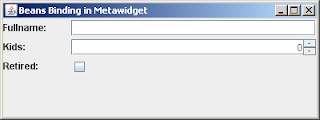
Run the code. You will see the screen below:


The SwingMetawidget has automatically populated itself with child components at runtime. It has chosen JTextField, JSpinner, and JCheckBox components to suit the fields of the Person class.

Metawidget is all about being native to the existing platform: it doesn't impose any additional dependencies on your code.
By default, Swing doesn't provide an Object-to-JComponent mapping mechanism, so Metawidget doesn't either. If you have Beans Binding available, however, Metawidget will use it.

Turn on Beans Binding

Add beansbinding-1.2.1.jar to your classpath, and the following line to the Main class (highlighted in bold):

package com.myapp;

import javax.swing.JFrame;
import org.metawidget.inspector.javabean.JavaBeanInspector;
import org.metawidget.swing.SwingMetawidget;
import org.metawidget.swing.binding.beansbinding.BeansBinding;

public class Main {
  public static void main( String[] p_args ) {
    final Person person = new Person();

    final SwingMetawidget mw = new SwingMetawidget();
    mw.setInspector( new JavaBeanInspector() );
    mw.setBindingClass( BeansBinding.class );
    mw.setToInspect( person );

    final JFrame frame = new JFrame( "Beans Binding in Metawidget" );
    frame.setDefaultCloseOperation( JFrame.EXIT_ON_CLOSE );

    frame.getContentPane().add( metawidget );
    frame.setSize( 400, 150 );
    frame.setVisible( true );
  }
}


Run the code again. You will see the same screen, but this time the JComponents are automatically populated by Beans Binding:


Populate the Values Back

To have Metawidget populate the values back, add the following code to the Main class (highlighted in bold):

package com.myapp;

import java.awt.BorderLayout;
import java.awt.event.ActionEvent;
import javax.swing.AbstractAction;
import javax.swing.JButton;

import javax.swing.JFrame;
import javax.swing.JOptionPane;
import org.metawidget.inspector.javabean.JavaBeanInspector;
import org.metawidget.swing.SwingMetawidget;
import org.metawidget.swing.binding.beansbinding.BeansBinding;

public class Main {
  public static void main( String[] p_args ) {
    final Person person = new Person();

    final SwingMetawidget mw = new SwingMetawidget();
    mw.setInspector( new JavaBeanInspector() );
    mw.setBindingClass( BeansBinding.class );
    mw.setToInspect( person );

    final JFrame frame = new JFrame( "Beans Binding in Metawidget" );
    frame.setDefaultCloseOperation( JFrame.EXIT_ON_CLOSE );

    frame.getContentPane().add( mw );
    frame.getContentPane().add(
    new JButton( new AbstractAction( "Save" ) {
      public void actionPerformed( ActionEvent e ) {
        mw.save();
        JOptionPane.showMessageDialog( frame, person.toString() );
      }
    } ), BorderLayout.SOUTH );

    frame.setSize( 400, 150 );
    frame.setVisible( true );
  }
}


Run the code again. This time, change some of the values and click the Save button. Metawidget will populate the values back, and display the resulting toString of the Person class:


Fine-Tune Component Creation

Metawidget supports several ways to control the components it creates. Here, we use the 'child components' approach: if you add a child JComponent with the same name as Metawidget would normally have given its automatically created component, Metawidget will use it in preference - but it will still apply Beans Binding for you.

Add the following code to the Main class (highlighted in bold):

package com.myapp;

import java.awt.BorderLayout;
import java.awt.event.ActionEvent;
import javax.swing.AbstractAction;
import javax.swing.JButton;
import javax.swing.JComboBox;
import javax.swing.JFrame;
import javax.swing.JOptionPane;
import org.metawidget.inspector.javabean.JavaBeanInspector;
import org.metawidget.swing.SwingMetawidget;
import org.metawidget.swing.binding.beansbinding.BeansBinding;

public class Main {
  public static void main( String[] p_args ) {
    final Person person = new Person();

    final SwingMetawidget mw = new SwingMetawidget();
    mw.setInspector( new JavaBeanInspector() );
    mw.setBindingClass( BeansBinding.class );
    mw.setToInspect( person );

    JComboBox combo = new JComboBox(
      new Object[]{ null, 1, 2, 3, 4 } );
    combo.setName( "kids" );
    mw.add( combo );


    final JFrame frame = new JFrame( "Beans Binding in Metawidget" );
    frame.setDefaultCloseOperation( JFrame.EXIT_ON_CLOSE );

    frame.getContentPane().add( mw );
    frame.getContentPane().add(
    new JButton( new AbstractAction( "Save" ) {
      public void actionPerformed( ActionEvent e ) {
        mw.save();
        JOptionPane.showMessageDialog( frame, person.toString() );
      }
    } ), BorderLayout.SOUTH );
    frame.setSize( 400, 150 );
    frame.setVisible( true );
}
}


Run the code. The JComboBox will take the place of the JSpinner, but it will still be initialized by Beans Binding and data will still be saved back when clicking the Save button.


Conclusion

That concludes our simple Beans Binding example. For a more 'real world' example (including using Beans Binding converters), please see the Address Book example in the Metawidget distribution.

Tuesday, February 26, 2008

Suppressing Label Generation in Metawidget

Many Metawidget layouts add a label beside each component, and it is sometimes handy to tweak this on a per-row basis.

Take, for example, the Swing Address Book example from the tutorial:

Say we decide the Address and Communications labels under Contact Details are unnecessary. To remove them, we simply specify a blank label:

@UiLabel( "" )
public Address getAddress() {


And Metawidget collapses the left hand column:

This can be particularly useful within JTabbedPanes, collapsing this...


...to this:
To hide the label without collapsing the left hand column, use a ResourceBundle to localize the label name to a blank space.

Thursday, February 21, 2008

Automatically Generated JTabbedPane

Update: the APIs shown in this blog entry have changed slightly in newer releases of Metawidget. Specifically .setParameter has been replaced with a more typesafe mechanism. Please download the latest documentation from http://metawidget.org

The new release of Metawidget adds support for automatically generated JTabbedPanes to TableGridBagLayout. This is in response to a forum posting by Mark P Ashworth (thanks Mark!).

To take the Swing Address Book from the tutorial as an example, if you have...


...by setting a single parameter on the Metawidget...

m_metawidget.setParameter(
  "sectionStyle",
  TableGridBagLayout.SECTION_AS_TAB );

...you'll now get...


...note the Contact Details and Other sections are now arranged in a JTabbedPane.