Saturday, March 1, 2008

Plugging in to Metawidget

Update: the APIs shown in this blog entry have changed slightly in newer releases of Metawidget. Specifically the new WidgetBuilder, WidgetProcessor and Layout interfaces make it easier to plug in without needing to override the Metawidget base class. Please download the latest documentation from http://metawidget.org

I was recently asked how to go about 'plugging in' to Metawidget, and whether some places are easier to plug in to than others. There are a few options, so here we go:

Inspectors

Inspectors inspect back-end sources and turn the information they find into a common format that the front-end Metawidgets understand. It's generally less work to write an Inspector than to write a front-end Metawidget.

You can:
  • inspect XML files. For example, you could inspect Commons Validator files for 'required' fields. The base class AbstractXmlInspector should be very handy for this. Good examples of extending it are StrutsInspector and HibernateInspector
  • inspect annotations. For example, you could inspect some custom Spring annotations you might have. The base class AbstractPojoInspector should be very handy. Good examples of extending it are JpaInspector and HibernateValidatorInspector
  • inspect other sources. For example, you could inspect a database schema for field lengths. The base class AbstractInspector should be handy, but this is the most work of the 3 inspector options

For more information, see Implementing your Own Inspector in the Reference Documentation.

Metawidgets

Metawidgets look at inspection results and choose the best components available for the target platform. Therefore it's important to be familiar writing UIs for the target platform 'by hand' before trying to build a Metawidget for it.

Desktop Metawidgets

  • new layout manager. For example, you could support MigLayout and have it understand all manner of clever SwingMetawidget.setParameters. You have to extend the base class org.metawidget.swing.layout.Layout. A good example is TableGridBagLayout, which uses setParameters for numberOfColumns
  • new component library. For example, you could support some SwingX components. You'd need to extend SwingMetawidget and override its buildWidget method
  • new framework. For example, you could support SWT. You can leverage all Metawidget's inspector architecture, and model your code off SwingMetawidget, but this is the most work of the 3 desktop options

Web Metawidgets

  • new JSP-based framework. For example, you could support Struts 2. The base class AbstractHtmlMetawidgetTag should be handy. Good examples are StrutsMetawidgetTag and SpringMetawidgetTag
  • new JSF component library. For example, you could support Tomahawk. The base class HtmlMetawidget should be handy. A good example is RichFacesMetawidget
  • new JSF validators. For example, you could support some custom validators you might have. You'll need to extend org.metawidget.faces.component.validator.Validator. A good example is StandardValidator
  • new layout manager. For example, you could lay out components in a 'newspaper' fashion. You'll need to extend org.metawidget.jsp.tagext.Layout (for JSP) or org.metawidget.faces.renderkit.LayoutRenderer (for JSF). Good examples are HtmlTableLayout and HtmlTableLayoutRenderer, but this is the most work of the 4 web options

Mobile Metawidgets

  • new framework. For example, you could support JavaFX Mobile. You could model your code off AndroidMetawidget, but this would be a bit of work.

For more information, see Implementing your Own Metawidget in the Reference Documentation.

If anyone decides to have a go at any of these, please let me know and I'll be happy to provide all the help you need.

Friday, February 29, 2008

Metawidget and Hibernate

Metawidget's new HibernateInspector knows how to inspect hibernate.cfg.xml files such as:

<hibernate-configuration>
  <session-factory>
    ...
    <mapping resource="mapping1.hbm.xml"/>
    <mapping resource="mapping2.hbm.xml"/>
    <mapping resource="mapping3.hbm.xml"/>
  </session-factory>
</hibernate-configuration>

From there, it traverses into the multiple mapping files such as...

<hibernate-mapping package="org.foo">
  <class name="Foo">
    <id name="baz"/>
    <property name="abc" type="clob"/>
  </class>
</hibernate-mapping>

...to extract useful UI hints. Hints like:
  • not-null fields are required fields
  • clob fields are large text boxes (like HTML textareas)
  • length attributes constrain input length
  • ids are hidden (though this is configurable)

These are the same features JpaInspector looks for in JPA annotations.

Wednesday, February 27, 2008

Beans Binding in Metawidget

Update: the APIs shown in this blog entry have changed slightly in newer releases of Metawidget. Specifically .setBindingClass has been replaced by .addWidgetProcessor. Please download the latest documentation from http://metawidget.org

This is a short tutorial on using Beans Binding in Metawidget. It should take around 10 minutes.

I'd recommend you use your preferred Java development environment. If you use an Integrated Development Environment (IDE), you'll need to start a new Java project and add metawidget.jar to it. Otherwise, you just need to ensure metawidget.jar is on your classpath.

The Object

First, we need an object to map from. Create a Person class under a package com.myapp:

package com.myapp;

public class Person {
  private String fullname = "Homer Simpson";
  private int kids = 3;
  private boolean retired = false;

  public String getFullname() {
    return this.fullname;
  }

  public void setFullname( String fullname ) {
    this.fullname = fullname;
  }

  public int getKids() {
    return this.kids;
  }

  public void setKids( int kids ) {
    this.kids = kids;
  }

  public boolean isRetired() {
    return this.retired;
  }

  public void setRetired( boolean retired ) {
    this.retired = retired;
  }

  public String toString() {
    String toReturn = "Fullname: " + this.fullname + "\n";
    toReturn += "Kids: " + this.kids + "\n";
    toReturn += "Retired: " + this.retired + "\n";
    return toReturn;
  }
}


The Interface

Next, we need a Swing app:

package com.myapp;

import javax.swing.JFrame;
import org.metawidget.inspector.javabean.JavaBeanInspector;
import org.metawidget.swing.SwingMetawidget;

public class Main {
  public static void main( String[] p_args ) {
    final Person person = new Person();

    final SwingMetawidget mw = new SwingMetawidget();
    mw.setInspector( new JavaBeanInspector() );
    mw.setToInspect( person );

    final JFrame frame = new JFrame( "Beans Binding in Metawidget" );
    frame.setDefaultCloseOperation( JFrame.EXIT_ON_CLOSE );

    frame.getContentPane().add( mw );
    frame.setSize( 400, 150 );
    frame.setVisible( true );
  }
}


The Output

Run the code. You will see the screen below:
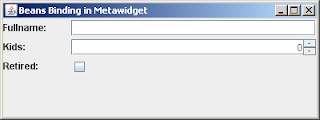

The SwingMetawidget has automatically populated itself with child components at runtime. It has chosen JTextField, JSpinner, and JCheckBox components to suit the fields of the Person class.

Metawidget is all about being native to the existing platform: it doesn't impose any additional dependencies on your code.
By default, Swing doesn't provide an Object-to-JComponent mapping mechanism, so Metawidget doesn't either. If you have Beans Binding available, however, Metawidget will use it.

Turn on Beans Binding

Add beansbinding-1.2.1.jar to your classpath, and the following line to the Main class (highlighted in bold):

package com.myapp;

import javax.swing.JFrame;
import org.metawidget.inspector.javabean.JavaBeanInspector;
import org.metawidget.swing.SwingMetawidget;
import org.metawidget.swing.binding.beansbinding.BeansBinding;

public class Main {
  public static void main( String[] p_args ) {
    final Person person = new Person();

    final SwingMetawidget mw = new SwingMetawidget();
    mw.setInspector( new JavaBeanInspector() );
    mw.setBindingClass( BeansBinding.class );
    mw.setToInspect( person );

    final JFrame frame = new JFrame( "Beans Binding in Metawidget" );
    frame.setDefaultCloseOperation( JFrame.EXIT_ON_CLOSE );

    frame.getContentPane().add( metawidget );
    frame.setSize( 400, 150 );
    frame.setVisible( true );
  }
}


Run the code again. You will see the same screen, but this time the JComponents are automatically populated by Beans Binding:


Populate the Values Back

To have Metawidget populate the values back, add the following code to the Main class (highlighted in bold):

package com.myapp;

import java.awt.BorderLayout;
import java.awt.event.ActionEvent;
import javax.swing.AbstractAction;
import javax.swing.JButton;

import javax.swing.JFrame;
import javax.swing.JOptionPane;
import org.metawidget.inspector.javabean.JavaBeanInspector;
import org.metawidget.swing.SwingMetawidget;
import org.metawidget.swing.binding.beansbinding.BeansBinding;

public class Main {
  public static void main( String[] p_args ) {
    final Person person = new Person();

    final SwingMetawidget mw = new SwingMetawidget();
    mw.setInspector( new JavaBeanInspector() );
    mw.setBindingClass( BeansBinding.class );
    mw.setToInspect( person );

    final JFrame frame = new JFrame( "Beans Binding in Metawidget" );
    frame.setDefaultCloseOperation( JFrame.EXIT_ON_CLOSE );

    frame.getContentPane().add( mw );
    frame.getContentPane().add(
    new JButton( new AbstractAction( "Save" ) {
      public void actionPerformed( ActionEvent e ) {
        mw.save();
        JOptionPane.showMessageDialog( frame, person.toString() );
      }
    } ), BorderLayout.SOUTH );

    frame.setSize( 400, 150 );
    frame.setVisible( true );
  }
}


Run the code again. This time, change some of the values and click the Save button. Metawidget will populate the values back, and display the resulting toString of the Person class:


Fine-Tune Component Creation

Metawidget supports several ways to control the components it creates. Here, we use the 'child components' approach: if you add a child JComponent with the same name as Metawidget would normally have given its automatically created component, Metawidget will use it in preference - but it will still apply Beans Binding for you.

Add the following code to the Main class (highlighted in bold):

package com.myapp;

import java.awt.BorderLayout;
import java.awt.event.ActionEvent;
import javax.swing.AbstractAction;
import javax.swing.JButton;
import javax.swing.JComboBox;
import javax.swing.JFrame;
import javax.swing.JOptionPane;
import org.metawidget.inspector.javabean.JavaBeanInspector;
import org.metawidget.swing.SwingMetawidget;
import org.metawidget.swing.binding.beansbinding.BeansBinding;

public class Main {
  public static void main( String[] p_args ) {
    final Person person = new Person();

    final SwingMetawidget mw = new SwingMetawidget();
    mw.setInspector( new JavaBeanInspector() );
    mw.setBindingClass( BeansBinding.class );
    mw.setToInspect( person );

    JComboBox combo = new JComboBox(
      new Object[]{ null, 1, 2, 3, 4 } );
    combo.setName( "kids" );
    mw.add( combo );


    final JFrame frame = new JFrame( "Beans Binding in Metawidget" );
    frame.setDefaultCloseOperation( JFrame.EXIT_ON_CLOSE );

    frame.getContentPane().add( mw );
    frame.getContentPane().add(
    new JButton( new AbstractAction( "Save" ) {
      public void actionPerformed( ActionEvent e ) {
        mw.save();
        JOptionPane.showMessageDialog( frame, person.toString() );
      }
    } ), BorderLayout.SOUTH );
    frame.setSize( 400, 150 );
    frame.setVisible( true );
}
}


Run the code. The JComboBox will take the place of the JSpinner, but it will still be initialized by Beans Binding and data will still be saved back when clicking the Save button.


Conclusion

That concludes our simple Beans Binding example. For a more 'real world' example (including using Beans Binding converters), please see the Address Book example in the Metawidget distribution.

Automatic User Interface Generator: Metawidget v0.4

Version 0.4 of Metawidget, the automatic user interface generator, is now available. This release concentrates on polishing, based on feedback from the previous release:

  • support for suppressing labels
  • support for Jetty
  • bug fixes; and
  • more unit tests
As before, the best place to start is the Reference Documentation:

Your continued feedback is invaluable to us. Please download it and let us know what you think.

Tuesday, February 26, 2008

Suppressing Label Generation in Metawidget

Many Metawidget layouts add a label beside each component, and it is sometimes handy to tweak this on a per-row basis.

Take, for example, the Swing Address Book example from the tutorial:

Say we decide the Address and Communications labels under Contact Details are unnecessary. To remove them, we simply specify a blank label:

@UiLabel( "" )
public Address getAddress() {


And Metawidget collapses the left hand column:

This can be particularly useful within JTabbedPanes, collapsing this...


...to this:
To hide the label without collapsing the left hand column, use a ResourceBundle to localize the label name to a blank space.

Saturday, February 23, 2008

Element.getAttribute

To tell Metawidget's Inspectors we don't want a label on a field, ideally we'd like to do...

@UiLabel( "" )

...or...

<property name="foo" label="">

Unfortunately, according to the DOM Element.getAttribute specification, it does not distinguish between 'an attribute having no value (eg. foo="")' and 'an attribute not existing'. In both cases getAttribute returns an empty String.

So to be able to specify an empty String without it just being ignored as a non-existant attribute, we need to put a String with a space...

@UiLabel( " " )

...or...

<property name="foo" label=" ">

...which is a bit sucky I know.

Suggested improvements welcome :)

Update: After playing around with label="null" for a bit, I noticed DOM supplies an Element.hasAttribute method for this purpose, so you can differentiate after all.

Friday, February 22, 2008

Declarative User Interface Generation: Metawidget v0.35

Version 0.35 of Metawidget, the tool for declarative user interface generation, is now available. This release concentrates on polishing, based on feedback from the previous release:
  • Hibernate support
  • Upgraded Android support
  • Better support for types (byte, Byte, short, Short, etc.)
  • bug fixes; and
  • yet more unit tests :)
As before, the best place to start is the Reference Documentation:


Your continued feedback is invaluable to us. Please download it and let us know what you think.